
reCAPTCHA Integration
(To be updated)
reCAPTCHA prevents your site from bots or spammers, it’s easy to use, friendly to users and could be a helpful tactic to defense your site from attackers.
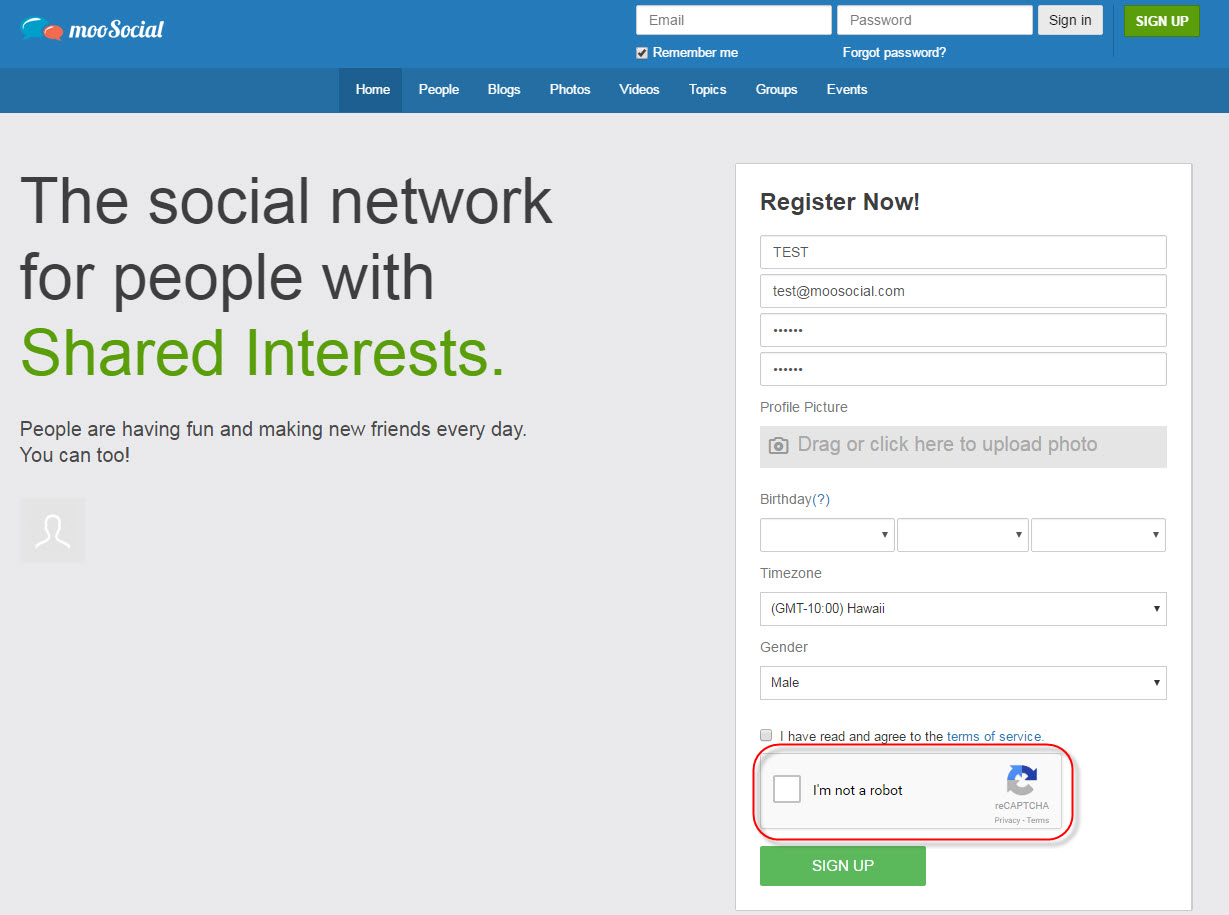
#As photo above, users must select I**’m not a robot ** check box to continue signing up.

#Verified as human by reCAPTCHA
*** Prerequisite : a Google Account is required to sign up for this service.**
**To integrate reCAPTCHA and use it on Sign Up page, Site Admin needs to record ** reCaptcha Public Key, reCaptcha Private Key ** and ** Enable ReCaptcha ** in ** Admin Dashboard.
The reCAPTCHA settings should be located in: ** Admin Dashboard/System Settings/Security:  #reCAPTCHA settings in Admin Dashboard. Click on the question mark ** (?) ** next to ** Enable reCaptcha, or go to https://www.google.com/recaptcha to obtain reCAPTCHA’s Public and Private keys. Once you are logged in reCAPTCHA site, select ** Get reCAPTCHA to register your site to use this service.
  #Select ** Get ReCAPTCHA** to start. In Register a new site section do the following: **
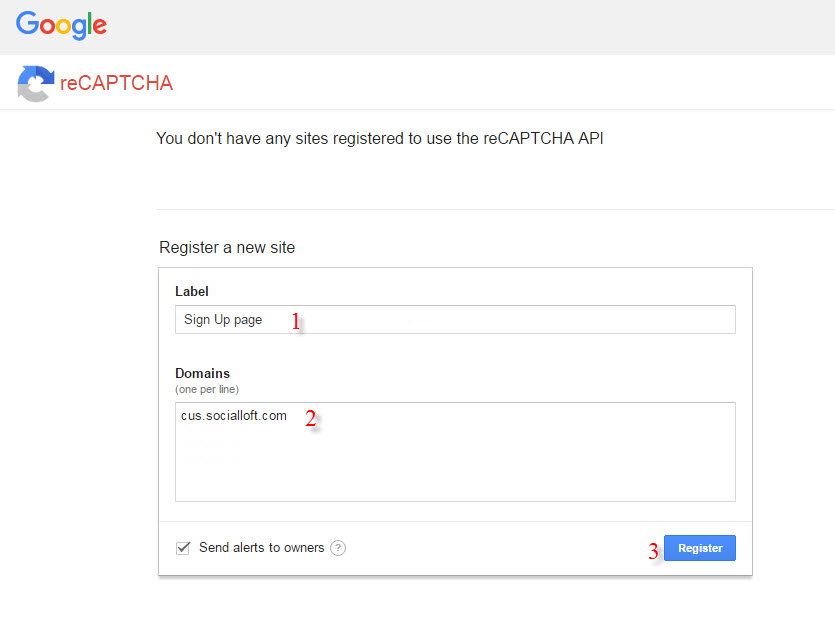
#The Register Page
1/ Enter a ** Label (Ex. mooSocial Signup) **
2/ Enter your site’s ** Domain (Ex. www.yoursiteurl.com//) **
**//3/ Hit on Register button. // **
**You will be redirect to a new page after changes are saved. **
//In **Adding reCAPTCHA to your site ** section, you will find the **Site key ( #1 - reCaptcha Public Key) and the Secret key ( #2 - reCaptcha Private Key) as shown below. Copy these two keys and paste them to the appropriate fields in Admin Dashboard.  #Keys generated Go to Admin Dashboard/System Settings/Security and do the following #Copy to Admin Dashboard & Save Settings// **
**//1/ Check to enable reCAPTCHA. // **
//2/ Input **reCaptcha **Public Key** (#1 - Site Key) // **
//3/ Input **reCaptcha Private Key (#2 - Secret Key) // **
//4/ Click **Save settings to finish // **
**//Congratulations, You have successfully integrated and enabled reCAPTCHA with mooSocial!!! // **